

Mazda Infotainment Reset Guide
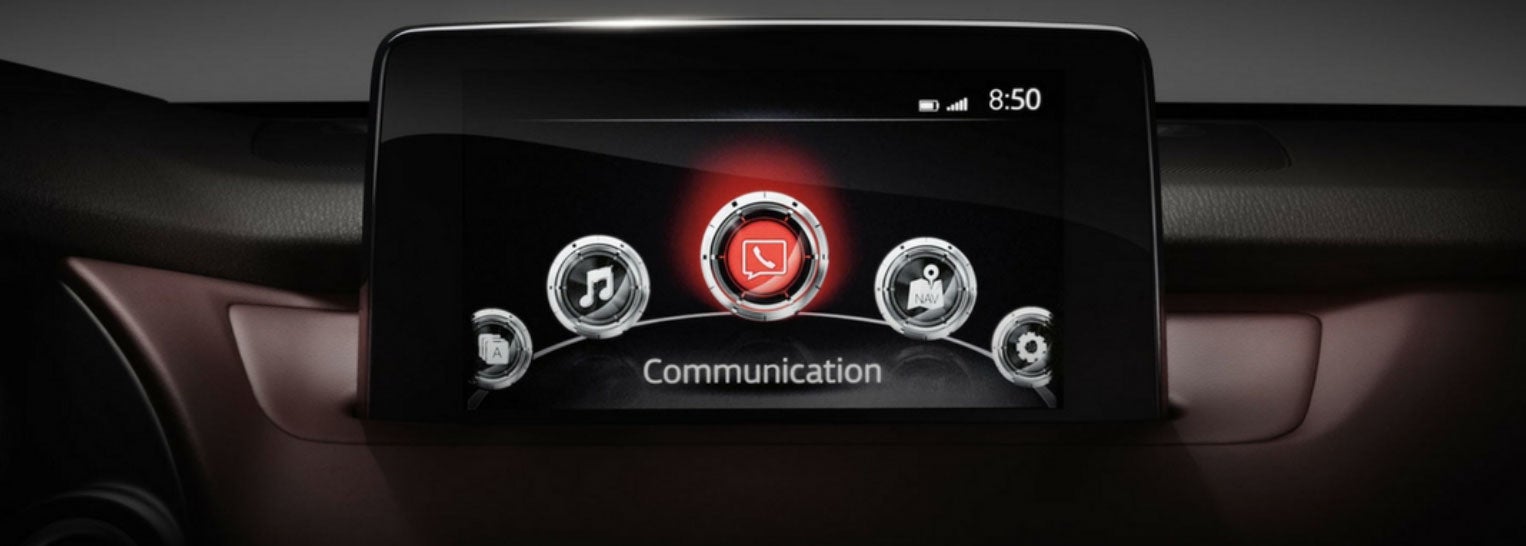
Your Mazda infotainment system is your gateway to seamless navigation, music, smartphone connectivity, and more. But what happens when it freezes, glitches, or just stops working altogether? Whether it’s a black screen, slow response time, or failed phone pairing, these issues can quickly turn a smooth ride into a frustrating one.
The good news? You don’t always need a dealership appointment to reset a Mazda infotainment system. This guide walks you through common troubleshooting steps—from quick resets to deeper system refreshes—to help you fix and reset your Mazda infotainment system on your own.
Why Your Mazda Infotainment System May Malfunction
Modern infotainment systems are essentially computers, and like any tech, they can suffer from temporary bugs or more persistent errors. The most common causes of infotainment issues in Mazda vehicles include:
- Outdated or corrupted software
- Faulty or improperly inserted SD cards
- Connection issues with smartphones (especially over Bluetooth or USB)
- Overheating from prolonged use
- Temporary memory glitches or system lag
If your system is behaving abnormally, the fix may be simpler than you think. Let's see how to reset your Mazda infotainment system.
Quick Troubleshooting Chart
|
Problem |
Try This First |
Next Step |
|
Frozen screen |
Soft reset (Volume + Nav + Back buttons) |
Hard reset or factory reset |
|
Navigation issues |
Remove and clean SD card |
Replace SD card |
|
Bluetooth not pairing |
Remove and re-pair phone |
Restart phone / update firmware |
|
CarPlay/Android Auto fails |
Use certified USB cable |
Update smartphone OS |
|
No display at all |
Check fuse and power |
Visit Seacoast Mazda |
Your Mazda infotainment center is designed for convenience, safety, and enjoyment—but when it doesn’t work as expected, it can be frustrating. Thankfully, most problems can be solved in minutes with a quick reset, a cleaned SD card, or a software update.
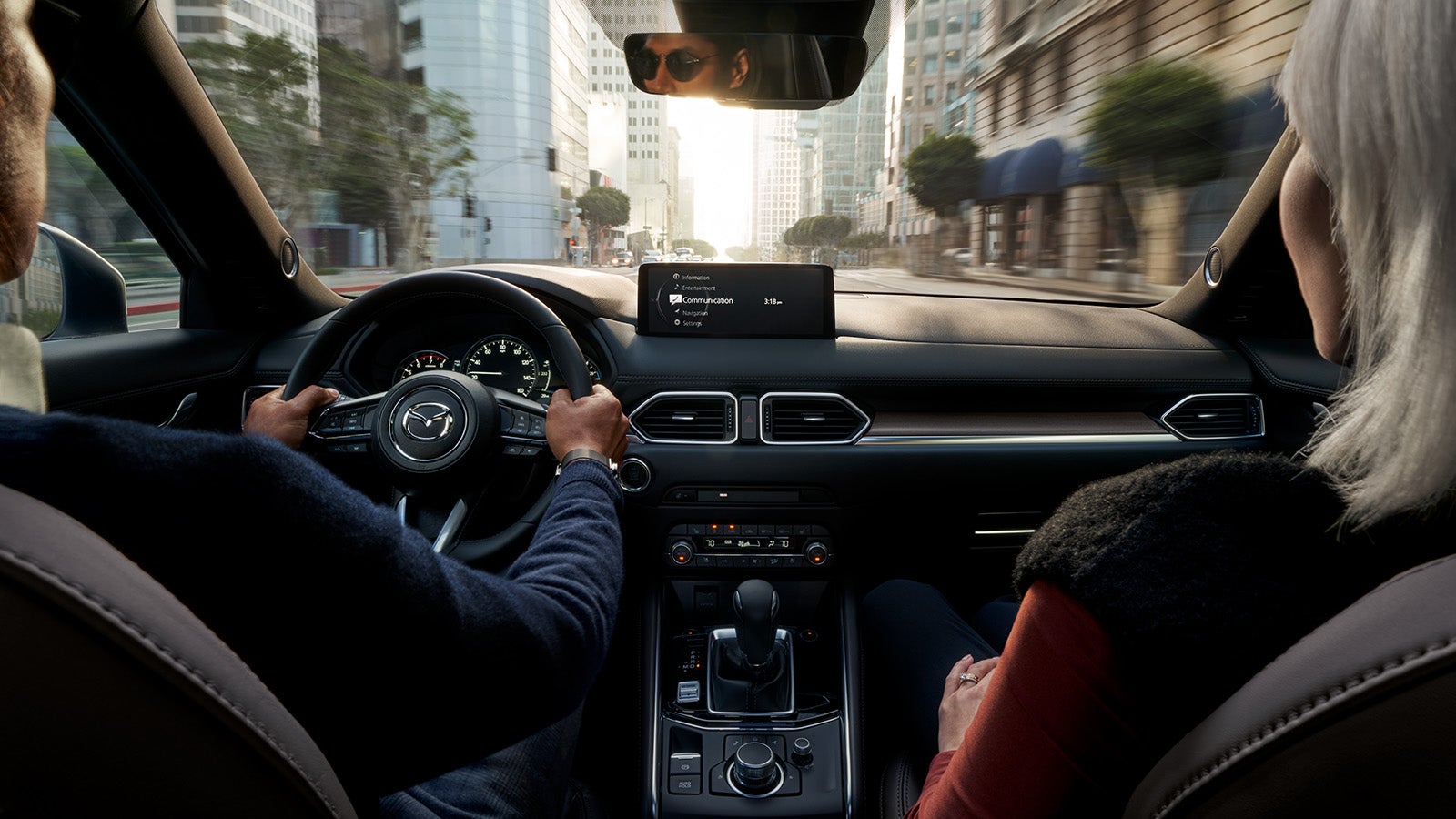
How to Soft Reset Your Mazda Infotainment System
If your screen freezes or becomes unresponsive, try performing a soft reset. This restart doesn’t delete any of your data—it simply reboots the system, much like restarting a smartphone. To perform a soft reset:
- Turn your ignition to “ON” or “ACC.” The engine doesn’t need to be running.
- Press and hold the Volume/Mute, Nav, and Back/Music buttons simultaneously.
- Hold all three for about 10 seconds until the screen goes black and restarts.
This soft reset resolves most temporary bugs, such as lagging touch controls or menus that won't load. It’s a quick and safe first step if your system seems “off.”
How to Hard Reset Your Mazda Infotainment System
If the soft reset doesn’t solve the issue, you may need a deeper reset—or access to the diagnostic menu for a closer look. To perform a hard reset:
- With the ignition on, press and hold the Volume, Favorites (?), and Nav buttons.
- Keep holding for around 10 seconds until the screen resets or you enter the diagnostics menu.
Caution: Don’t change any settings in the diagnostic menu unless you're familiar with them. However, simply accessing and restarting from this mode can help clear more persistent software glitches.
How to Factory Reset Your Mazda Infotainment System
Still not working? A factory reset will return your infotainment system to its original state, erasing all personal settings, paired phones, and navigation history. Only use this option if other methods have failed. To perform a factory reset:
How to perform a factory reset:
- Navigate to Settings on your infotainment screen.
- Select System > Restore Factory Settings.
- Confirm your choice and allow the system to reboot.
Afterward, you’ll need to re-pair your phone, input your radio presets, and restore your navigation preferences. While inconvenient, this is often the most effective solution for deeply embedded glitches or software corruption.
Check and Clean Your Navigation SD Card
Mazda's infotainment system depends heavily on its SD card, especially for navigation. If the card becomes dirty or corrupted, your system may slow down, crash, or fail to load maps altogether. To check and clean your infotainment's SD card:
- Turn off the ignition completely.
- Eject the SD card carefully (usually located near the center console or USB ports).
- Inspect the gold contacts and gently clean them using a pencil eraser or electronics contact cleaner.
- Reinsert the card and restart the infotainment system.
In many cases, this alone can resolve recurring map errors or system crashes. If the card is damaged or fails to load repeatedly, consider replacing it. Be sure to use a genuine Mazda SD card, as third-party versions may not be compatible.
Update Your Mazda Infotainment Software
Running outdated software is a leading cause of infotainment issues. Fortunately, updating it is relatively simple—especially for Mazdas equipped with Wi-Fi capabilities. To check for updates:
- Tap Settings on the infotainment screen.
- Go to System > Software Update.
- Connect to a Wi-Fi network if prompted.
- Follow on-screen instructions to download and install the latest firmware.
New updates often improve system performance, enhance smartphone connectivity (especially with Android Auto and Apple CarPlay), and fix known bugs.

Troubleshooting Phone Connectivity Issues
If your system crashes when using Bluetooth, Apple CarPlay, or Android Auto, your smartphone might be the culprit.
Fixes to try:
- Disconnect and then re-pair your phone via Bluetooth.
- Restart your phone and clear the app cache (especially music and map apps).
- Try a different USB cable—preferably one that’s certified for data transfer.
- Test the system with a different phone to rule out compatibility problems.
For wired connections, avoid third-party USB hubs or extension cables. Use a direct USB-to-device connection for the most reliable performance.
Proactive Maintenance Tips
Prevent future problems with a few simple habits:
- Always keep your software up to date.
- Remove unnecessary devices from the Bluetooth pairing list.
- Clean your SD card and USB ports every few months.
- Use quality cables for smartphone connections.
- Don’t leave the system running for long periods while parked—it can overheat.
A little care goes a long way in extending the life of your infotainment system.
When to Visit Seacoast Mazda for Help
If you’ve tried to reset Mazda infotainment settings using the steps above and your system still isn’t working properly, it may be time to bring your vehicle to Seacoast Mazda. Here are signs you need professional service:
- Persistent black screen or no power at all
- Cracked, flickering, or unresponsive display
- Audio problems tied to the head unit
- Issues that return immediately after a reset
Our factory-trained technicians can diagnose hardware failures, replace faulty components, and perform advanced software repairs.
For more persistent issues, don’t hesitate to reach out. At Seacoast Mazda, our expert technicians are here to help you get the most out of your vehicle’s technology. Whether you need a full diagnostic, an SD card replacement, or a firmware upgrade, we’ll get you back on the road—with your infotainment center fully restored.
Schedule your service today or contact us for more support—we’re happy to help!
Schedule Service